
Crosspass for Desktop
Share a password, note, image or PDF from your Mac or Windows computer, encrypted end-to-end.
Free during the beta. Mac (Apple Silicon or Intel) and Windows 10 and 11 (x64).
Send and receive
Send something
- Open Crosspass on your computer.
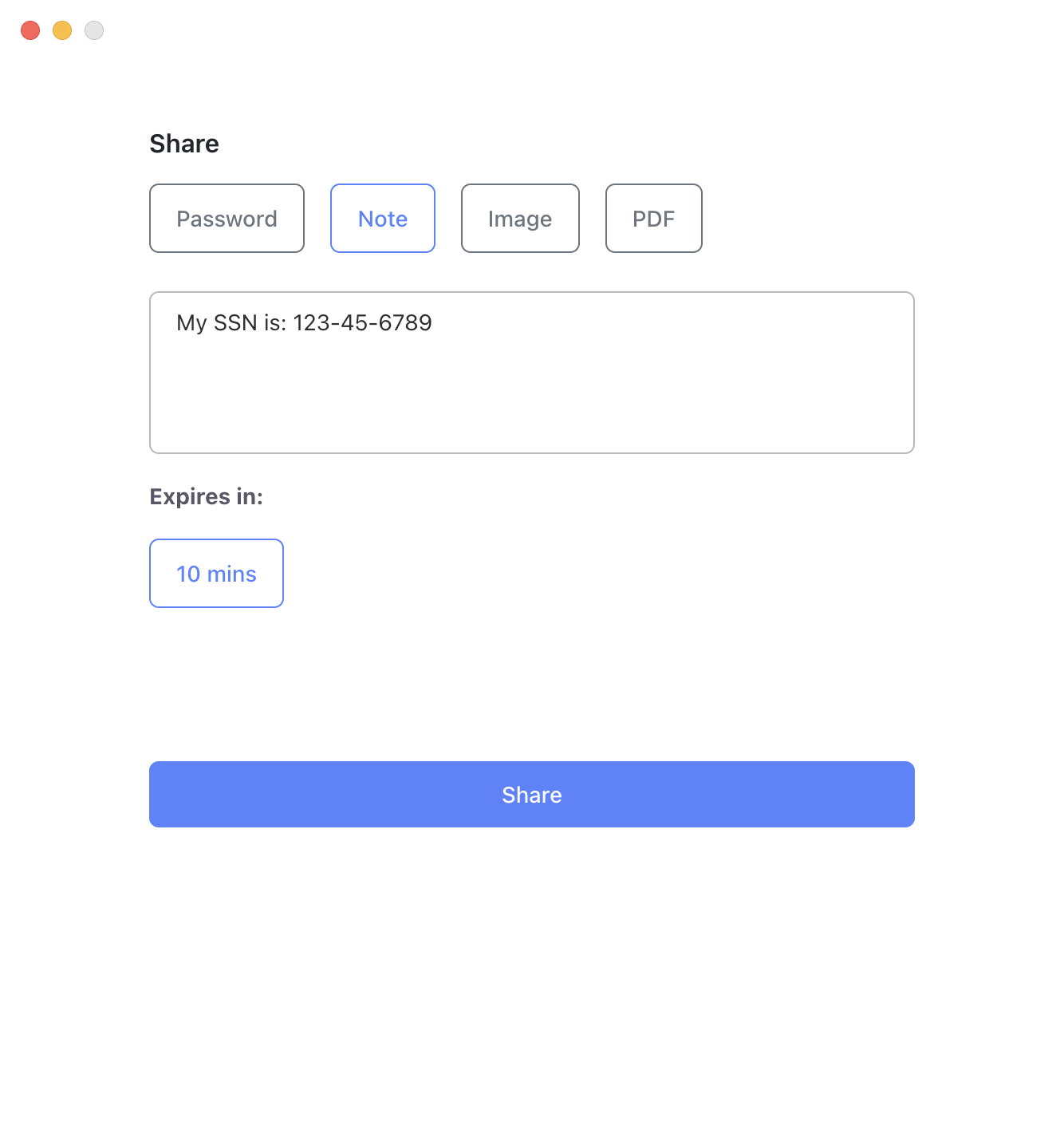
- Choose Password, Note, Image or PDF, add the content and click Share. Images and PDFs can be up to 10 MB.
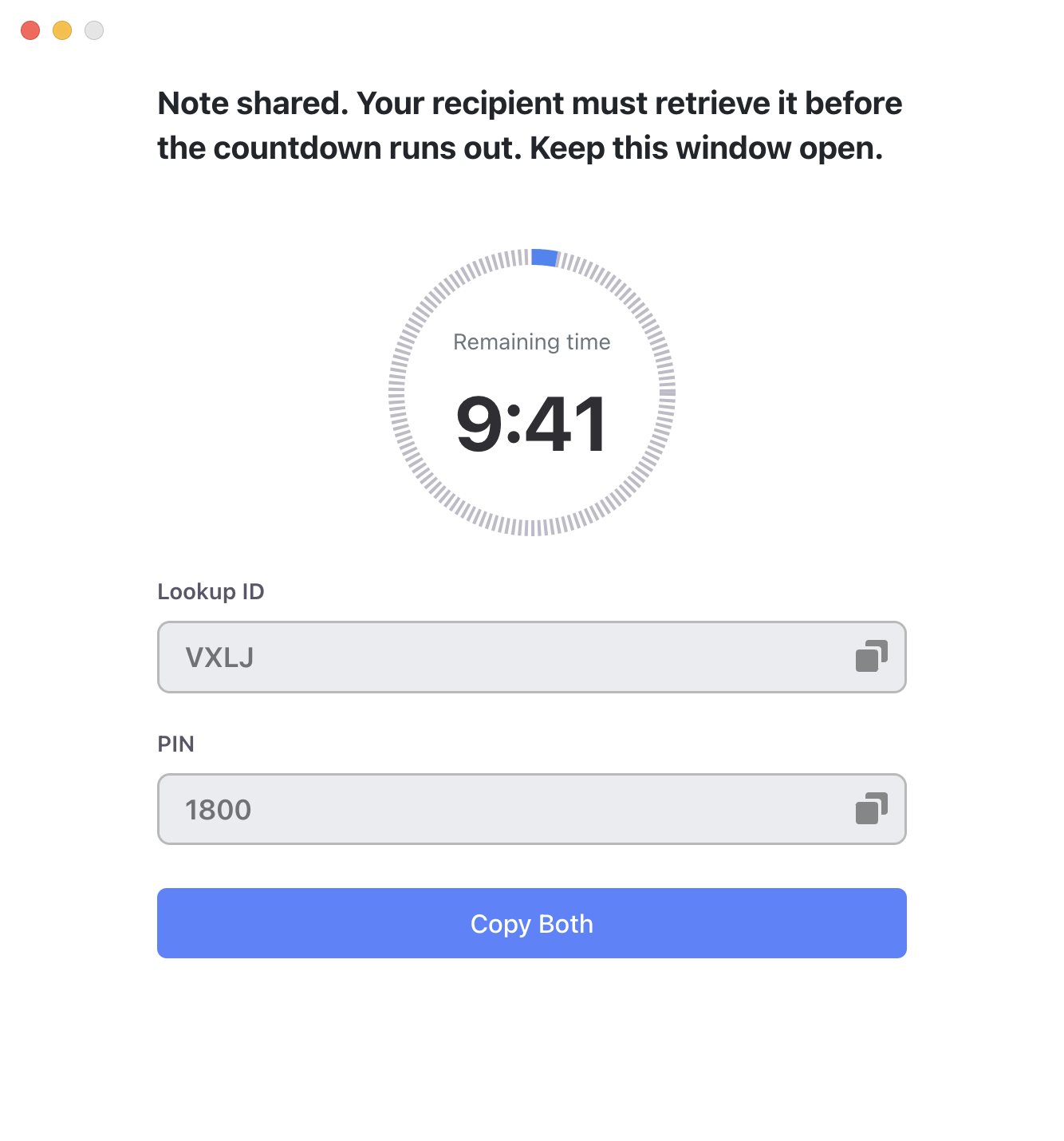
- Crosspass shows a Lookup ID and a single-use PIN. Pass them to the recipient by email or instant message. Copy Both copies the two together.
- Keep the Crosspass window open. The recipient has 10 minutes to retrieve the item. After 3 wrong PIN attempts the share is cancelled.
Need more than 10 minutes? Share from the iPhone or Android app, which allows a longer pickup window.
Receive something
- Get the Lookup ID and PIN from the sender.
- In Crosspass, choose to receive an item.
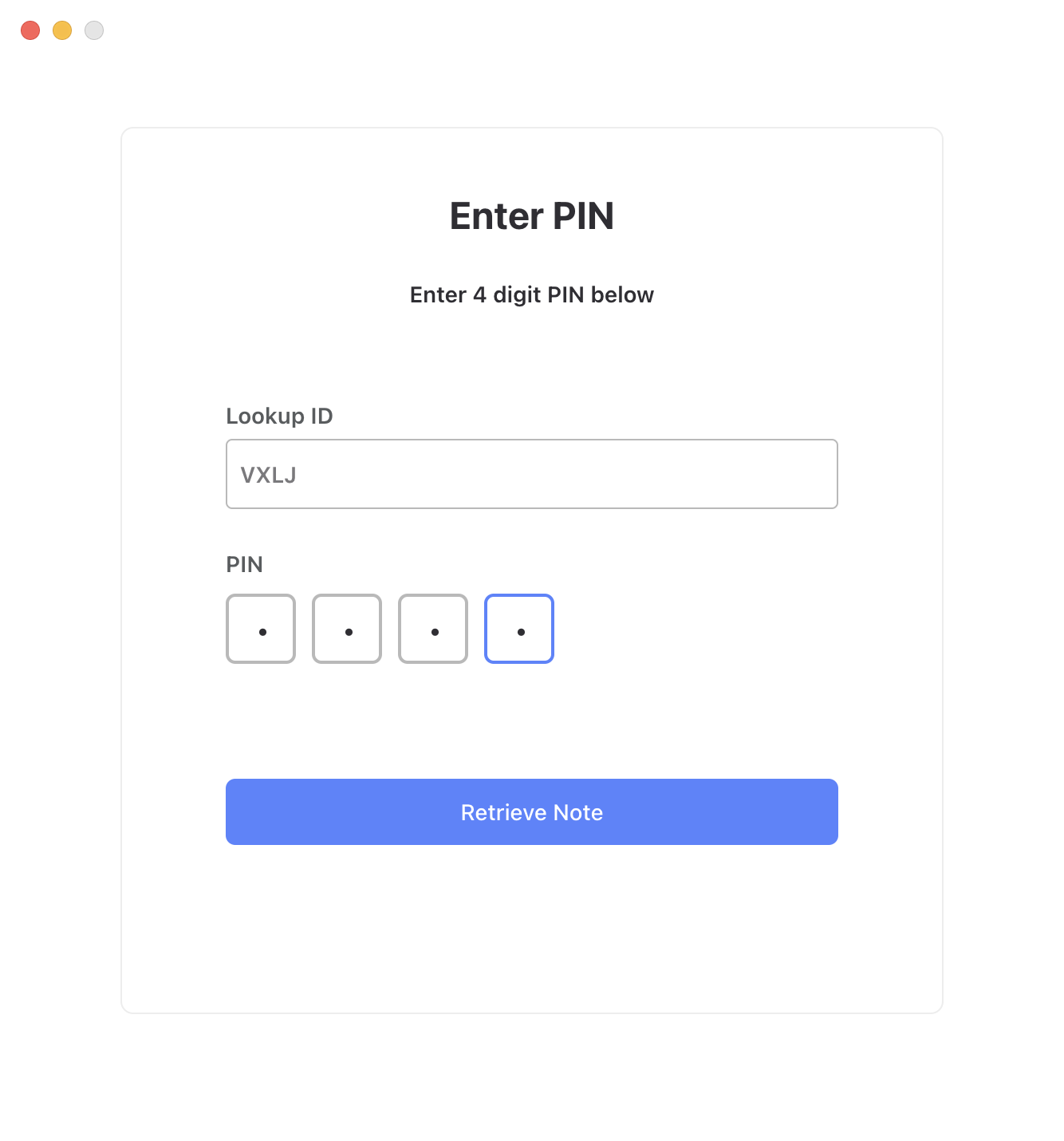
- Enter the Lookup ID and the 4-digit PIN.
- Retrieve the item before the sender’s time runs out.
The sender can use any Crosspass app, desktop or mobile.
Use it with Slack
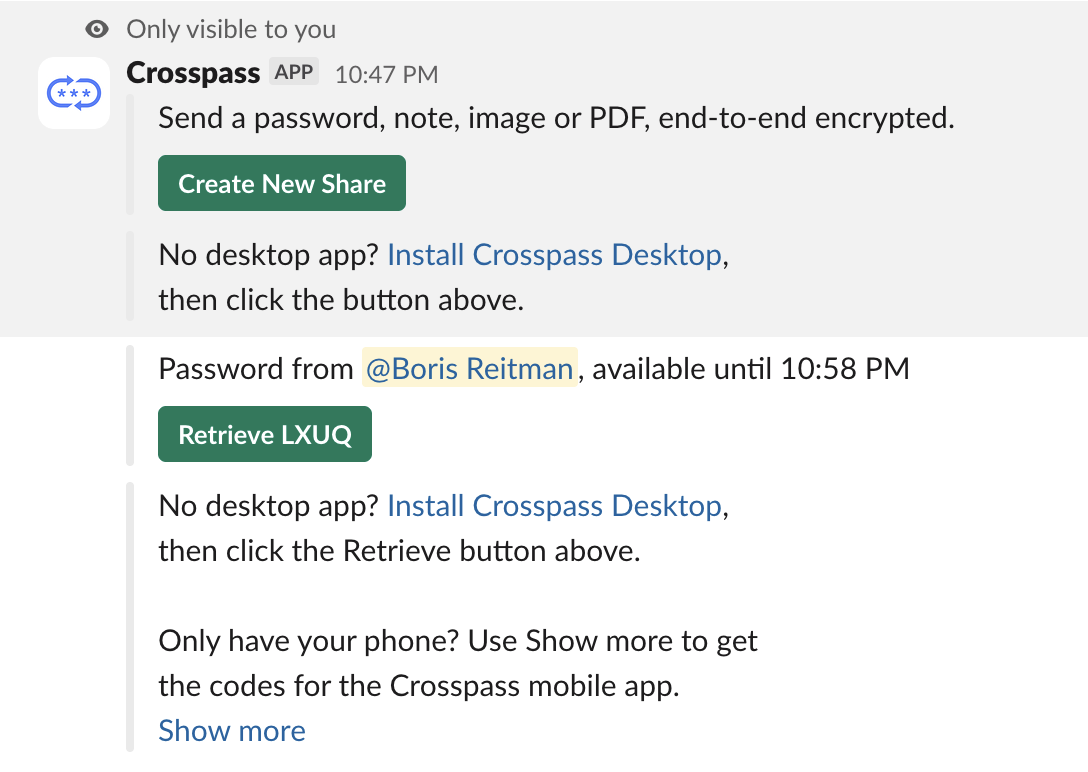
Type /crosspass in a one-to-one Slack direct message to send an item with the desktop app. The secret never goes to Slack’s app or servers: Slack sees only the Lookup ID and the single-use PIN.
Security
- End-to-end encryption: Items are encrypted on the sender’s device and decrypted on the recipient’s. The Crosspass server relays data that it cannot read.
- Authentication: Crosspass uses the OPAQUE cryptographic protocol to authenticate the communicating parties. Details are in the white paper.
- Storage on the computer: Data the app saves is encrypted with a device key held in the macOS Keychain on a Mac, and in Windows Credential Manager on Windows. Read how app data is encrypted at rest on macOS.
Get started
Install Crosspass Desktop
- Download Crosspass for Desktop.
- If Crosspass asks for a license key, enter your license key ID and secret. If you don’t have a license key, contact support.
To send feedback or report a problem with the beta, contact support.