
Using Crosspass Desktop with Slack
Share a password, note, image or PDF with someone from a Slack direct message. You enter the item in the Crosspass desktop app, not in Slack.
Send from Mac (Apple Silicon or Intel) or Windows (x64). Receive with any Crosspass app.
Installation
For the workspace admin: add Crosspass to Slack
This is done once per workspace. If your workspace requires app approval, a Workspace Owner or app manager has to approve Crosspass. See Slack’s help article on app approval. Without that requirement, any full member can do this step. Guests can’t install apps.
-
Click this button to open Slack in your web browser:

-
If Slack asks you to sign in, sign in. Check that the correct workspace is selected.
-
Click Allow. If you are asked to request approval instead, send the request and wait for it to be approved, then click the button again if Crosspass hasn’t been added.
-
Your browser then shows Crosspass is installed. Close the tab.
To check that it worked, type /crosspass in a one-to-one direct message in Slack.
For users: install Crosspass Desktop
To send, you need the desktop app. To receive, any Crosspass app works, desktop or mobile.
- Download Crosspass for Desktop.
- Install it and open it once.
- If it asks for a license key, enter your license key ID and secret. If you don’t have a license key, contact support.
Send and receive
Send something
- In Slack on your computer, open a direct message with the recipient.
- Type
/crosspassand press Enter. - Click Create New Share. If asked, allow your computer to open Crosspass. The button works for 25 minutes; after that, run
/crosspassagain. - In Crosspass, choose Password, Note, Image or PDF, add the content and click Share. Images and PDFs can be up to 10 MB.
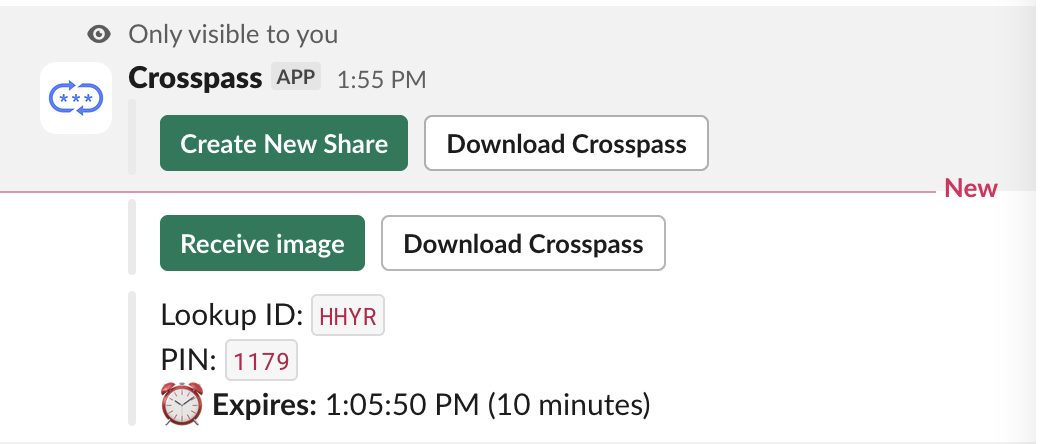
- Crosspass posts a message in the conversation with an Open in Crosspass button and the expiry time. The Lookup ID and PIN for the mobile app are hidden under Show more.
- Keep the Crosspass window open. The recipient has 10 minutes to retrieve the item. After 3 wrong PIN attempts the share is cancelled.
Direct messages only. /crosspass works only in a one-to-one direct message, not in group messages or channels. Anyone who can open the posted message can use its button or show the Lookup ID and PIN.
Receive something
Use any Crosspass app: desktop, iPhone or Android.
With Crosspass Desktop:
- In Slack, click Open in Crosspass in the message.
- The PIN is filled in for you. Click Retrieve Note.
With the mobile app:
- In Slack, click Show more under the message.
- In Crosspass, choose to receive an item.
- Enter the Lookup ID and PIN.
If the 10 minutes have passed, ask the sender to share it again.
How it works
%%{init: {"theme": "default"}}%%
sequenceDiagram
    actor Alice
    participant AD as Alice's<br>Crosspass Desktop
    participant SA as Alice's<br>Slack
    participant Server as Crosspass<br>Server
    participant SB as Bob's<br>Slack
    participant BD as Bob's<br>Crosspass
    actor Bob
    Alice->>SA: /crosspass
    SA->>AD: "Create New Share" opens Crosspass
    Alice->>AD: enter the secret
    AD->>SA: lookup ID and PIN
    SA->>SB: lookup ID and PIN
    SB->>Bob: lookup ID and PIN
    Bob->>BD: enter lookup ID and PIN
    AD->>Server: encrypted secret
    Server->>BD: relay
    BD->>Bob: show the secret
- Your secret never goes to Slack’s app or servers.
- Slack sees only the Lookup ID and a single-use PIN.
- The secret is encrypted end-to-end.
- The sender keeps Crosspass open until the recipient retrieves the note.
For the details of the protocol, see the white paper.